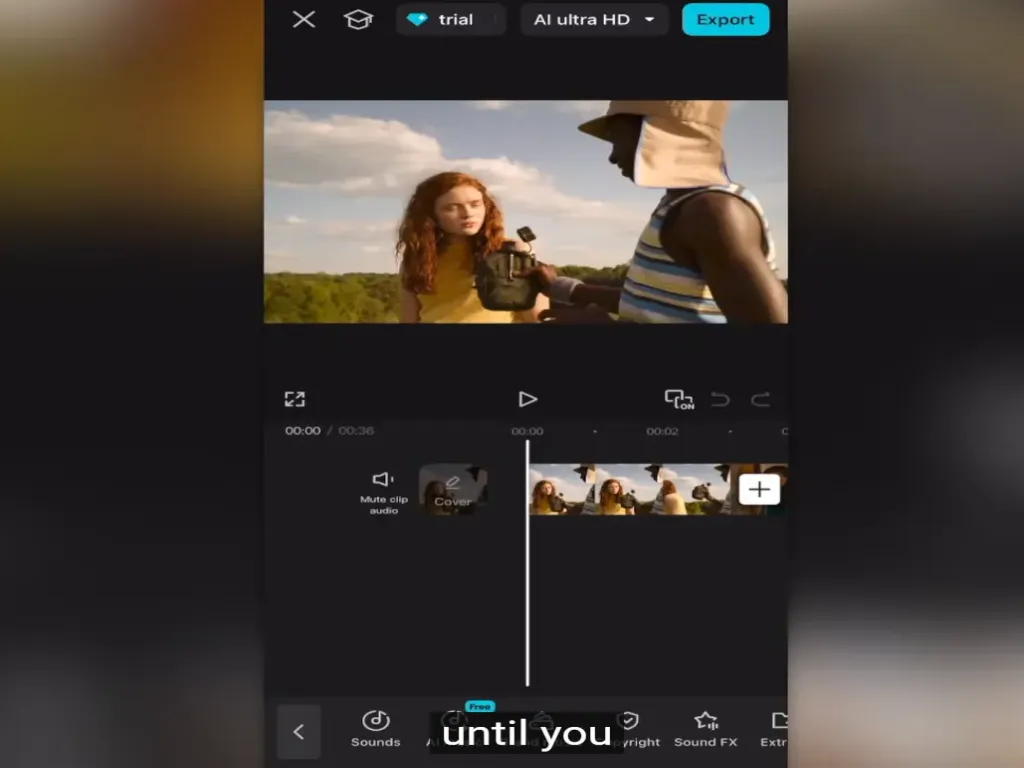
Using CapCut APK for your TikTok videos is the fasted and easy way to do that. You can easily add effects, text, stickers and use the filters from library. Both, a mobile and PC can do it, use whichever work for you.
Can I use CapCut APK to edit my TikTok videos?
Yes. You can, and this is what I will suggest as it’s easy to use. Both apps are created by the same company. Lot of TikTokers use the CapCut to edit their videos, both beginners and professionals. Download the CapCut Pro APK if you don't have already.
CapCut vs TikTok:
You can edit the videos in TikTok too, but it only has basic tools for that. You can use that if you want to upload the video without any delay and video is already good. While CapCut gives you more advanced features for editing.
How to import TikTok video to CapCut?
First you need to link both your accounts (TikTok and CapCut). Once done, you can share the music from TikTok to capcut and use it in videos. Edit your videos in capcut and send it to your TikTok account with just one click. Which is easy way to do that.
Where to edit the videos (PC or Mobile)?
Both are great. It depends on what you are working on, if you have single clip or short, you can use the mobile for easy and fast editing. But if you are working on a bigger project and dealing with lot of audios and videos to merge and split them. Then CapCut PC is the option you need.
Tutorial: TikTok edit using CapCut
Import scene pack and audio:
Open CapCut and click on new project, now once you are in your project, from the gallery, upload the clip you want to edit.
Aspect Ratio:
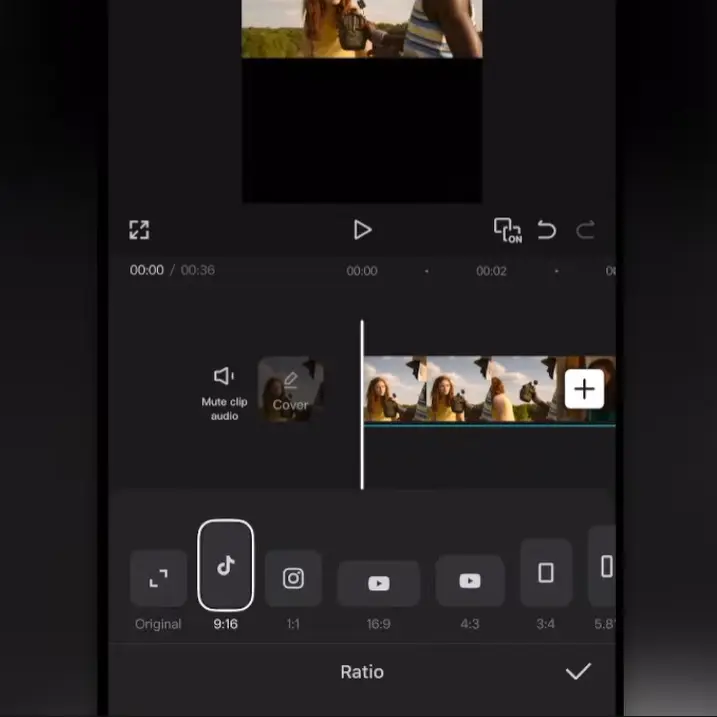
are you going to use ¾ or 9:16? Well, most TikTokers use 9:16 ratio, choose that. As you don’t want to cut the video from top to bottom. Otherwise, you will see the black bars in your videos.
Fixing the Video (optional):
If the video is small, click on the clip/video and use your two fingers to zoom the video. Zoom it until it fills the screen and you will see the 9:16 frame with no blank space.
Splitting Clips:
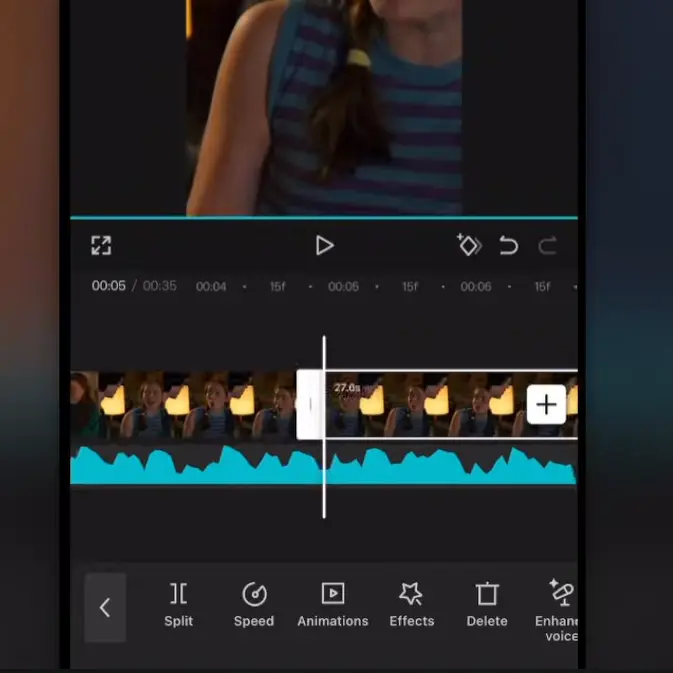
If you don’t want the full clip, use the splitting option and apply it to the area. If you add a different audio, then this will help you to match the video and audio.
Adjust Brightness with Overlays:
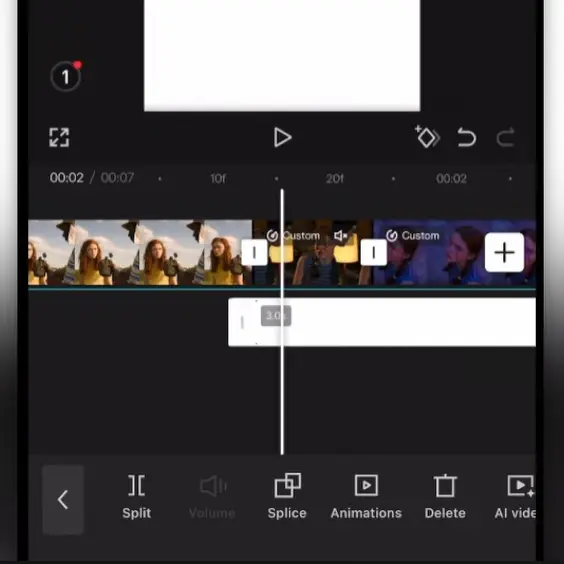
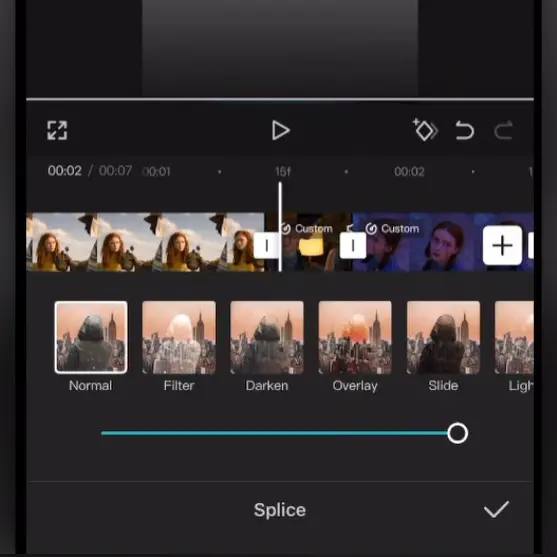
Are videos dark or filmed in the area with less light? Use the brightness option to adjust the lighting. Or you can use a white image as an overlay, add image to the video adjust the width and height. And reduce the opacity, this will make the video brighter.
Adding Colors:
Whenever we edit the videos, either we add some filters for coloring or adjust them. TikTok editor give us basic options while CapCut give us advanced level of editing options. Use the premade coloring effect, as adjusting the color requires a professional level of editing skills.
Quality and Exporting:
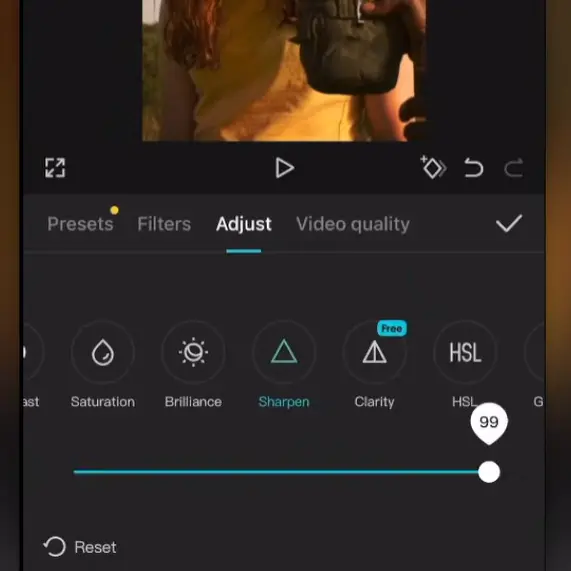
Now you are done with the editing of your video. Let’s make sure the quality is good, if not adjust it for final touchup. Use the sharp and contrast options before exporting the video.
If your video is 16:9 and want to convert it to 9:16. Change the ratio by blurring the background or zooming the video. These two options are most popular amount TikTokers.
The first 3 seconds of your video are important. Personally, If I see useless effect like film effect of 3,2,1 I skip that video. You don’t want that with your videos, so make it good, use the title and without any delay show the highlight of your video, it’s a long video. If it’s a short video, just show it to stop people from scrolling to next video.
Use the Text options to add the captions. You can also use the auto generated caption which is powered by AI to save time. If you use the AI for that, make sure to review the captions before exporting the video.
Most TikTokers use the 30fps as frame rate, if you want movie like feel, you can choose the 24fps, here fps means Frame Per Second.